I work the floor
Start a shift, take and move orders, kitchen screen, tables and what to do when something breaks.
10.Starting your shift
The first three minutes
- Pick your name
The owner or manager signs the device in once with their email and password; after that it stays on
/dashboard/shiftand staff never type an email or password. Find your name and tap it. - Punch your PIN A number pad appears — enter your code and you land straight in Waiter Mode. That PIN is what ties every order you ring in back to you.
- Turn the order sound on A banner shows up at the bottom of the screen — Click to enable order sounds. Tap Enable. Without it, new orders arrive silently.
- End the shift when you leave Come back to the same screen and press End shift, so the next person can start under their own name.
Name not on the list?
Then nobody has given you a PIN yet. The owner adds it from
/dashboard/staff— it takes a minute.
Heads up
Leave the Orders screen open for the whole shift. New orders land on it live — no refreshing needed.
11.Taking orders
An order's journey from Pending to Completed
Every order walks the same path. Move the status as you go — the customer sees the same status on their phone.
✉️ New → 📋 Accepted → 🔥 Preparing → ✅ Ready → 🏎️ On the Way → 🏁 Completed
| Status | What it means | What you do |
|---|---|---|
| ✉️ New | A new order nobody has opened yet. | Check the items and address, then tap Accept Order. |
| 📋 Accepted | You accepted it; the kitchen now has it. | Tap Send to Kitchen once the chef starts on it. |
| 🔥 Preparing | The chef is on it. | If the customer calls, give them the time estimate. Tap Mark Ready when the food's done. |
| ✅ Ready | Food is done and waiting. | Tap Hand to Driver for delivery, or hand it straight to the customer. |
| 🏎️ On the Way | The driver has left with it. | Tap Mark Delivered once it arrives — the order closes out as Completed. |
| ✕ Cancelled | The order was called off. | Use Cancel Order (available any time up to Ready). Write the reason — it shows up in Activity. |
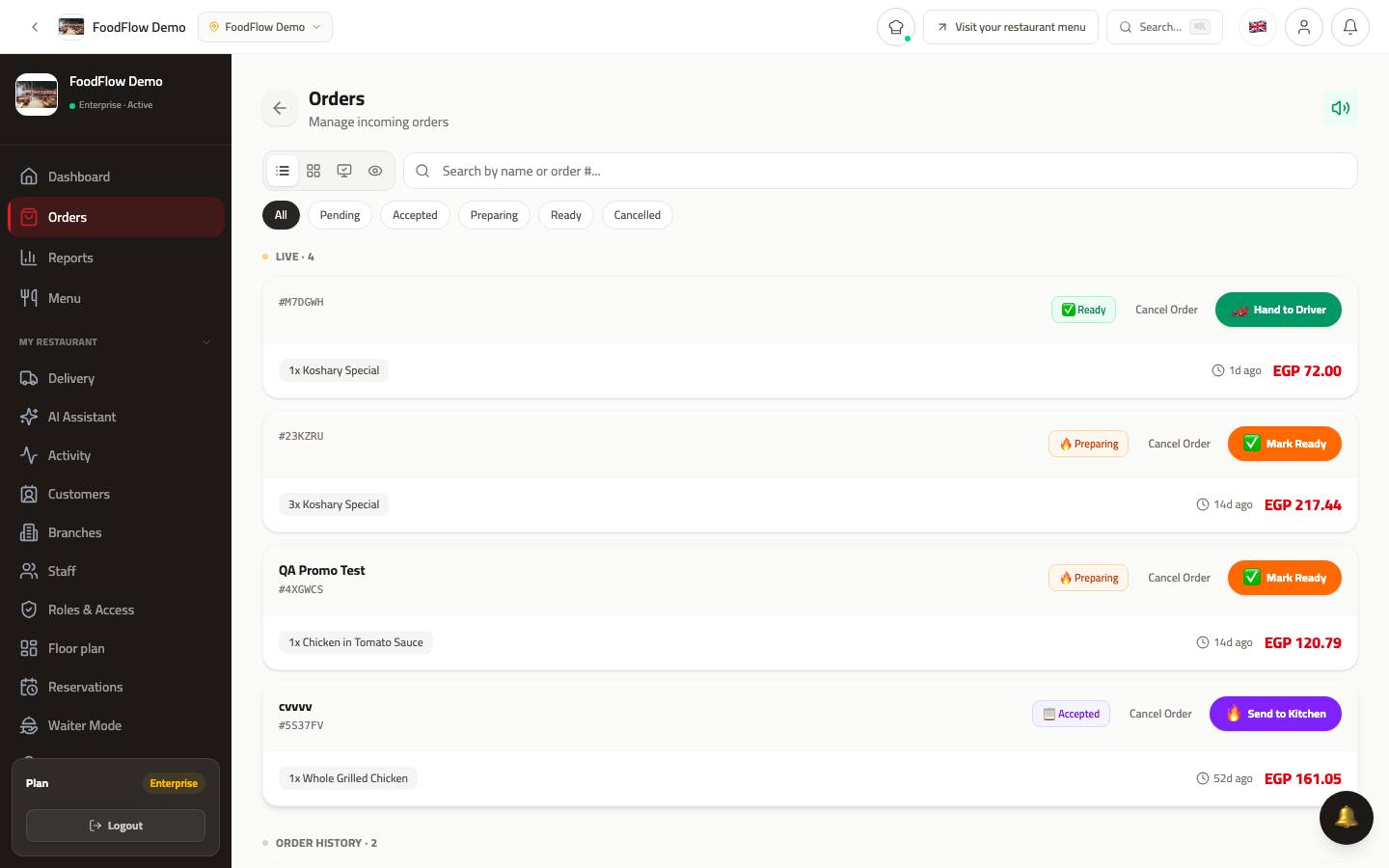
The Orders screen — new orders on top, and you change status from here.
12.The kitchen screen
For the chef — order tickets in order
/dashboard/kitchen is where the owner sets up your kitchen stations (Grill, Fry, Drinks — whatever your kitchen needs) and gives each one a PIN. As kitchen staff, you don't work from that setup page — you work from the KDS screen itself, at /kds.
- Sign in to your station
Open
/kdson the tablet or screen in the kitchen, pick your station, then enter its 4-digit PIN. - Read the ticket Every order routed to your station drops in as a new ticket. Any special request — no onion, extra spicy — sits right under the item.
- Bump it when it's done Tap Start on a new ticket, then tap Done once it's cooked — the ticket clears from the screen.
Tip
Tickets change colour the longer they sit: yellow after 5 minutes, red after 10. Red tickets piling up means you're falling behind.
13.The floor
Waiter Mode, Reservations, and the floor view
Waiter Mode
From your phone: tap a table to seat it, add items with the customer, then tap Send to Kitchen.
/dashboard/waiter
Floor View
Every table colour-coded — Empty, Seated, Ordered, or Paying — with a live count of how many are occupied and how many are ready to pay.
Open it from the Orders screen's toolbar (the floor-view icon) — there's no separate page for it anymore.
Reservations
Today's bookings with name, time, and party size.
/dashboard/reservations
Delivery
Delivery orders land in the Orders screen like any other order — open the ticket to see the customer's address. Delivery zones and fees are the owner's settings, not something you change during service.
/dashboard/orders
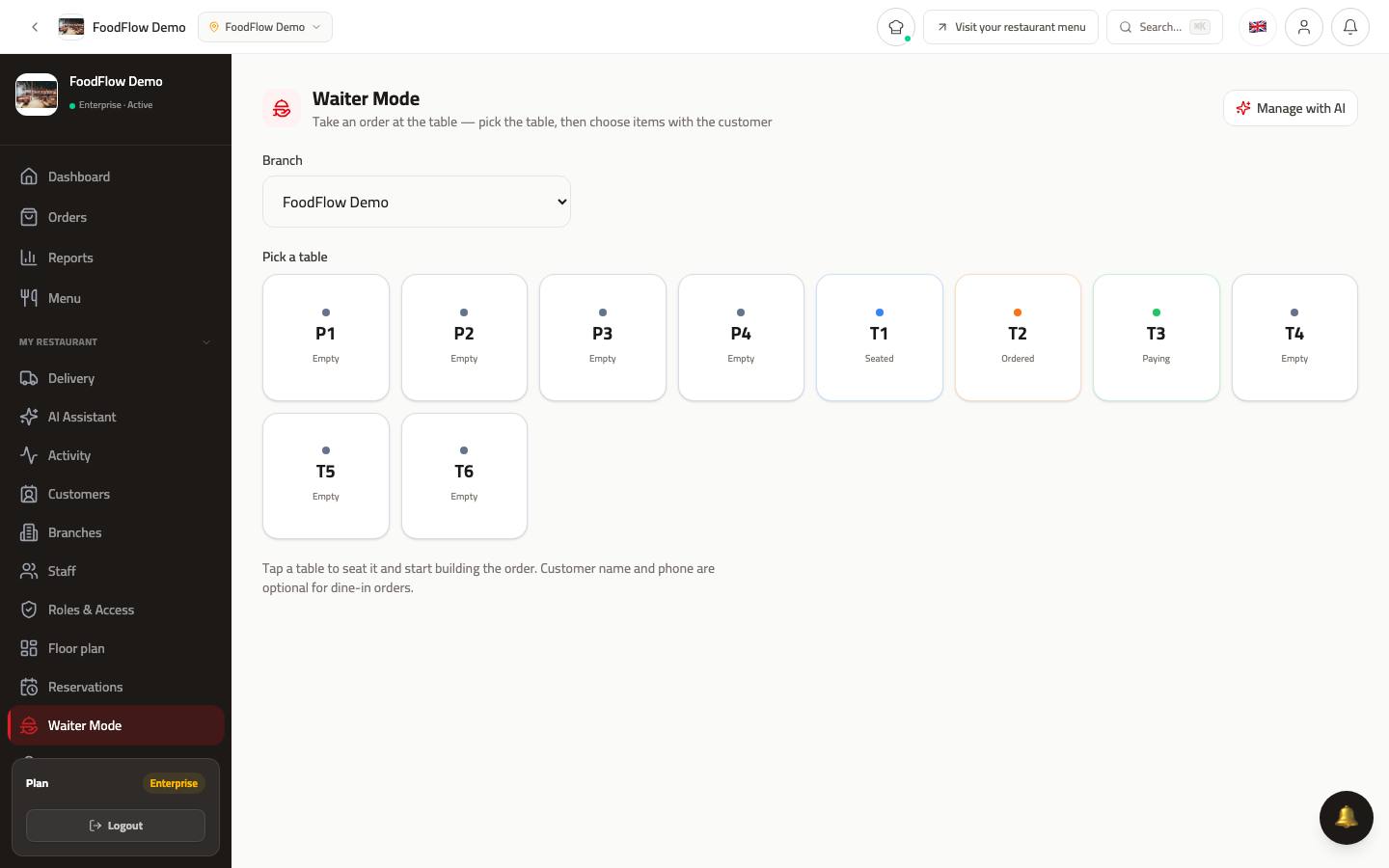
Waiter Mode — built for a phone: table, items, done.
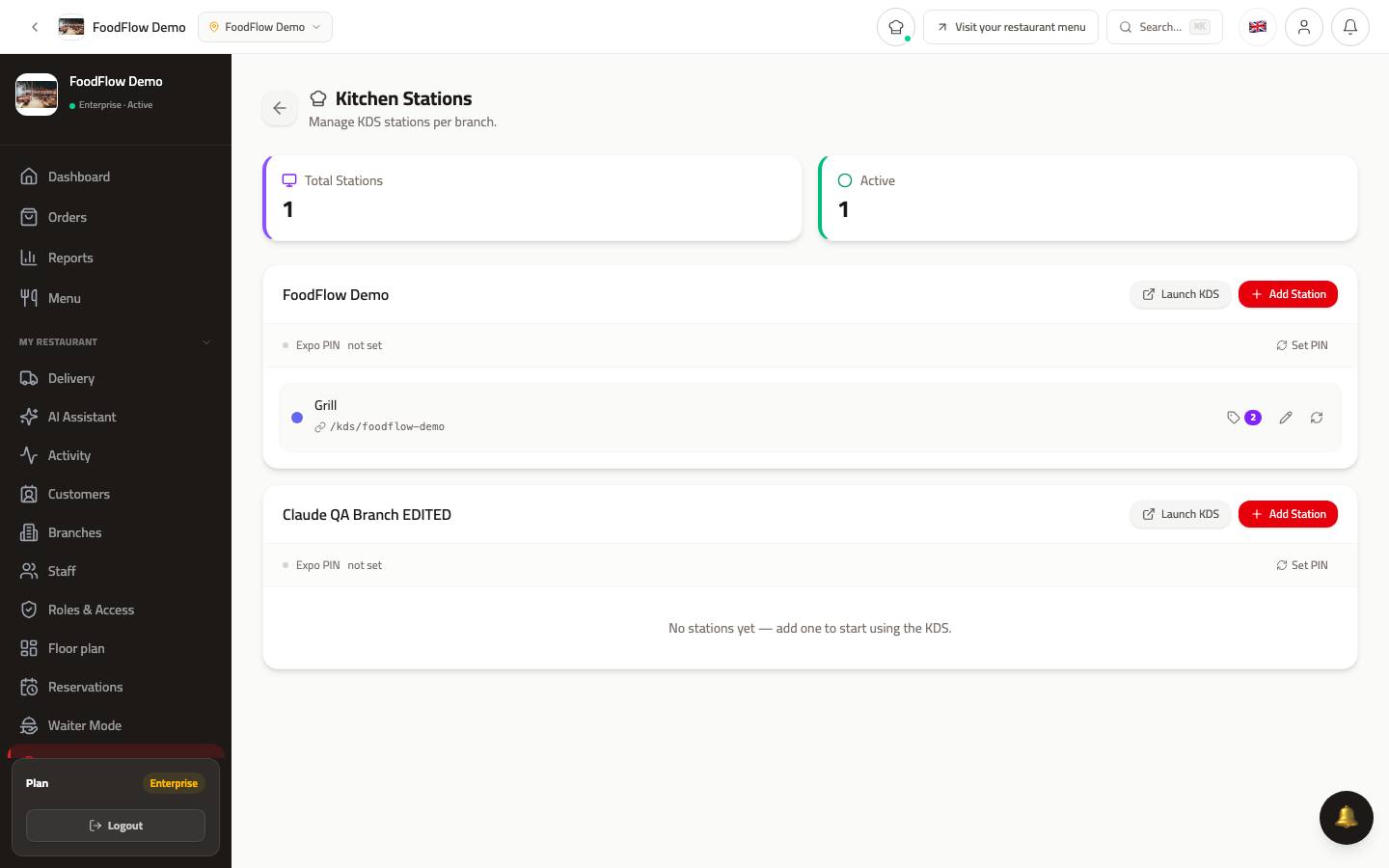
The kitchen screen refreshes itself — nobody has to reload it.
14.When something goes wrong
The four you'll actually hit
| Problem | Fix |
|---|---|
| No order sound | A banner shows at the bottom of the screen — Click to enable order sounds. Tap Enable. If you already dismissed it, refresh the page and check the device volume. |
| An order was entered wrong | There's no way to edit items on a placed order. Tap Cancel Order — this works any time up to Ready — write the reason, and enter a new one. |
| An item ran out | Switch its availability off in Menu — it disappears from the customer's view right away. |
| A section is missing | Your role doesn't include it. Ask the owner to adjust your permissions in /dashboard/roles. |